Modules and feature availability
Check which plugins, settings and permissions a feature needs before you use it.
Needs: Administration
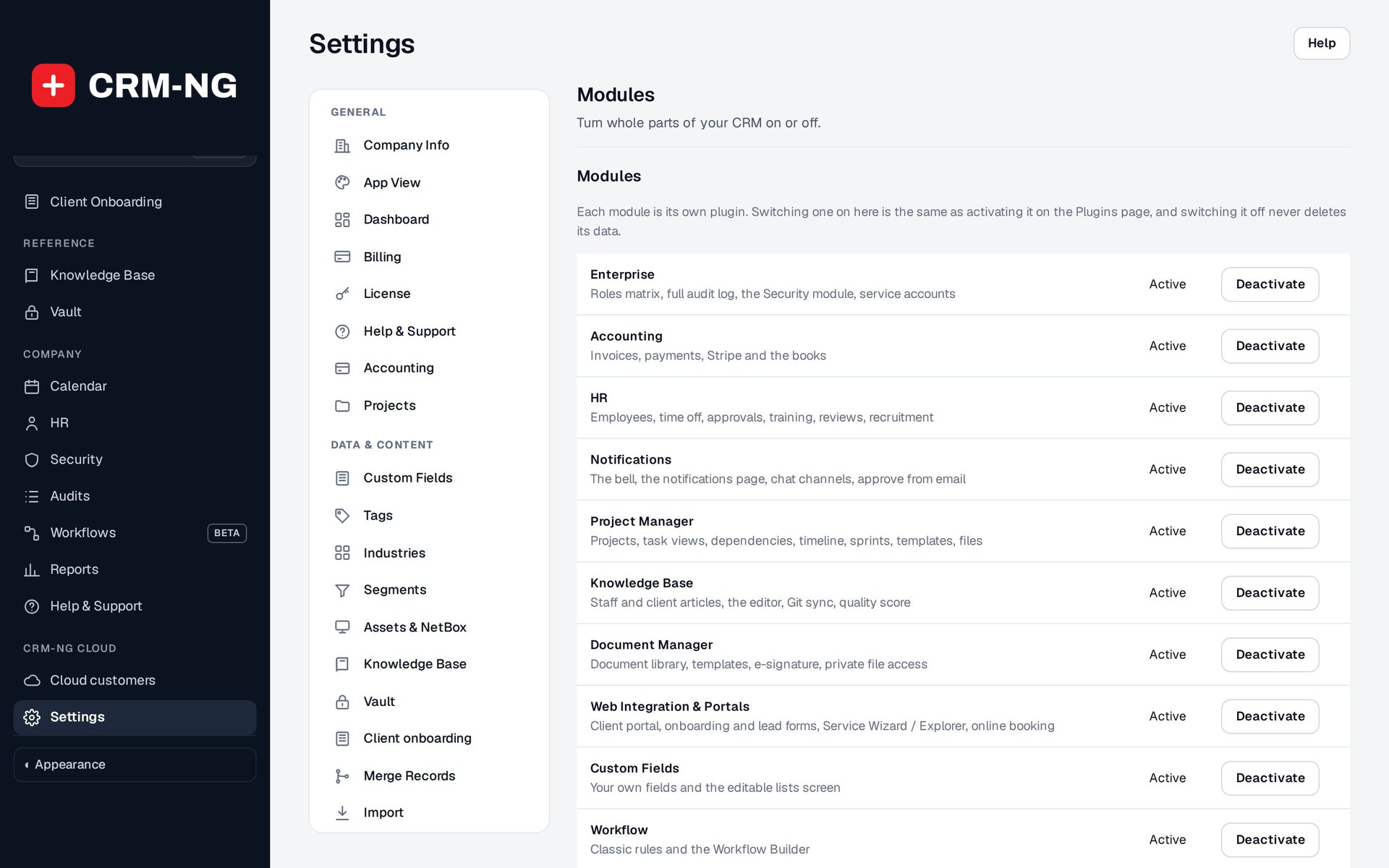
Settings → Modules is where administrators enable optional parts of CRM-NG and check their requirements.
Some CRM-NG features are part of the core application. Others need an optional module, the Pro plugin, a license entitlement or a connection to another service. Your account must also have permission to use the feature. This chapter helps you check those requirements when setting up the application or investigating a missing menu.
Requirements by feature
| Area | Dependency or availability |
|---|---|
| Clients, leads, companies, deals, catalogue, assets, vendors, estimates, invoices, time, campaigns | Core application; actions still depend on permissions |
| Client tickets, portal and document signing | Client Portal module |
| Onboarding, public lead forms, lead intelligence, SMTP, service wizard | Their individual optional modules |
| Online booking | CRM-NG booking module plus compatible Booking Hub; external calendars require their own connections |
| Service plans, SLA v2, included-hours billing | Corresponding Pro modules and entitlement |
| Projects, templates and sprints | Projects Pro module |
| Human Resources and Accounting | Each requires its Pro module; HR can also be used on its own |
| Native advanced login security | Security Pro module; related core access controls still apply |
| Workflow Builder and its library | Workflows module; available triggers and actions depend on enabled modules |
| Surveys, Client lifecycle, Renewals, Monitoring, Purchasing, Phone & Text, Report Builder | Each its own module |
| Process Discovery | Process Discovery module, with Workflows |
| AI Assistant | AI module and an Anthropic API key; off until a key is added |
| QuickBooks Online / Xero sync | Accounting sync module, with Accounting |
| Intranet and Team Spaces | Their own modules; HR supplies departments, teams and announcements |
| Phone app (/app/) | Mobile module; a screen shows only for modules that are on |
| Service Explorer | Pre-release; restricted preview, not a generally available public catalogue |
| Alpha / Beta Feedback | Staging-only module in the reviewed build |
Turn on a module
- Sign in with an administrative account and open Settings → Modules.
- Read the requirements beside the module. Check that any required module and licence entitlement are available.
- Enable the module and save the setting. Reopen the application menu and look for the feature.
- Complete its setup, including any connection to an external service. Enter credentials in the integration's settings.
- Test the feature using an account with the role that will use it day to day. An administrator may see controls that an employee or client cannot use.
Use a small demonstration record for the first test and follow it through to the expected result. For example, when testing a mail connection, confirm that the message arrived; saving the mail settings only confirms that the configuration was stored.
Turning a module off removes access to its features. It is not a way to delete its records. Before disabling one, check whether your portal pages, workflows or scheduled jobs still depend on it.
Check the license
Settings → License shows the installed license state. Confirm the features and environments covered by your agreement with the provider before making a purchase or planning a rollout.
Names such as Bronze, Silver and Gold in Settings → Plans describe customer service plans you can configure. They are not software editions or published CRM-NG prices.