Sign-in security
Sign-in protection comes with the Enterprise module. Without it, accounts sign in with a password only. Passkeys and codes people have already set up are kept, and work again as soon as the module is on, so nobody is locked out by a module being switched off.
Set the policy
Security → Settings (the gear on the Security screen) decides:
- Who must use two-step sign-in.
- How long a sign-in lasts before people must sign in again.
- Lockouts: repeated failed sign-ins block the address for ten minutes, and whole-site bans stop coordinated attacks.
Each person adds a sign-in method
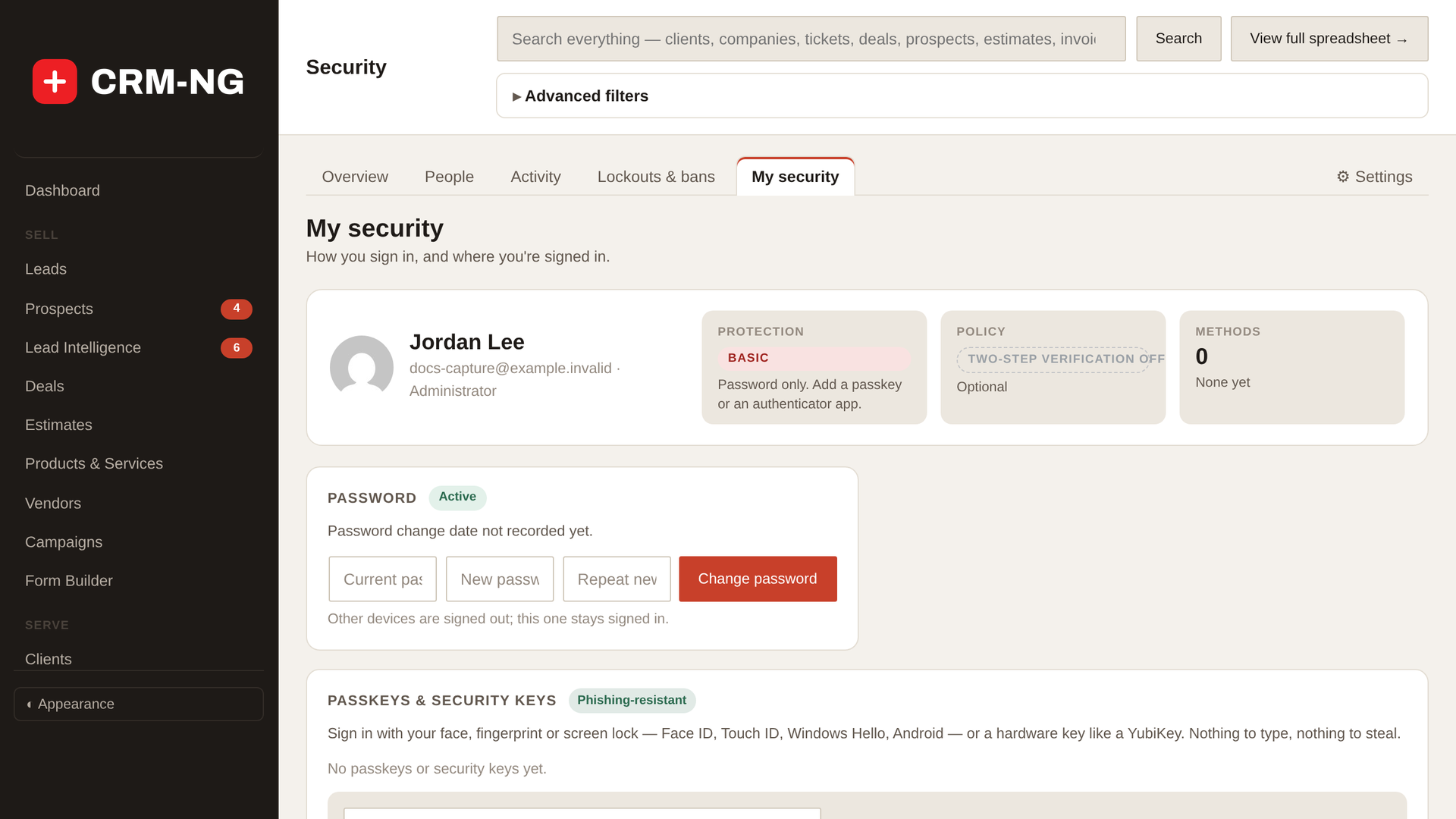
Each person opens Security → My security, which shows their protection level, password and sign-in methods, and adds at least one method:
| Method | What it is | Good for |
|---|---|---|
| Passkey | Face ID, Touch ID, Windows Hello or a phone, built into the device | Most people: fast and phishing-resistant |
| Security key | A hardware key such as a YubiKey | Administrators and anyone handling vault secrets |
| Authenticator app | Time-based six-digit codes (Google Authenticator, Microsoft Authenticator, 1Password…) | A universal fallback |
Note
Passkeys and security keys need HTTPS and the site's real domain. They will not work on a bare IP address.
Backup codes
The first method creates ten backup codes. Save them with Download (.txt), Copy or Print. The file is built in your browser and never stored on the server. Each code works once.
- Anyone with only one method sees Add a second way to sign in, with buttons to add it right there. Backup codes do not count as a method.
- Coming back to the codes step later does not generate new codes.
Service accounts and access
- Service accounts for integrations are created in Settings. They never appear in people pickers.
- Settings → Access decides who sees which sections. With Enterprise, the roles matrix sets permissions per role in detail, and All Activity (everyone's audit trail) is granted per person.
Next: where to go next.