Building a public lead form
Choose the questions visitors answer and decide where their responses are saved.
Needs: Lead Forms module
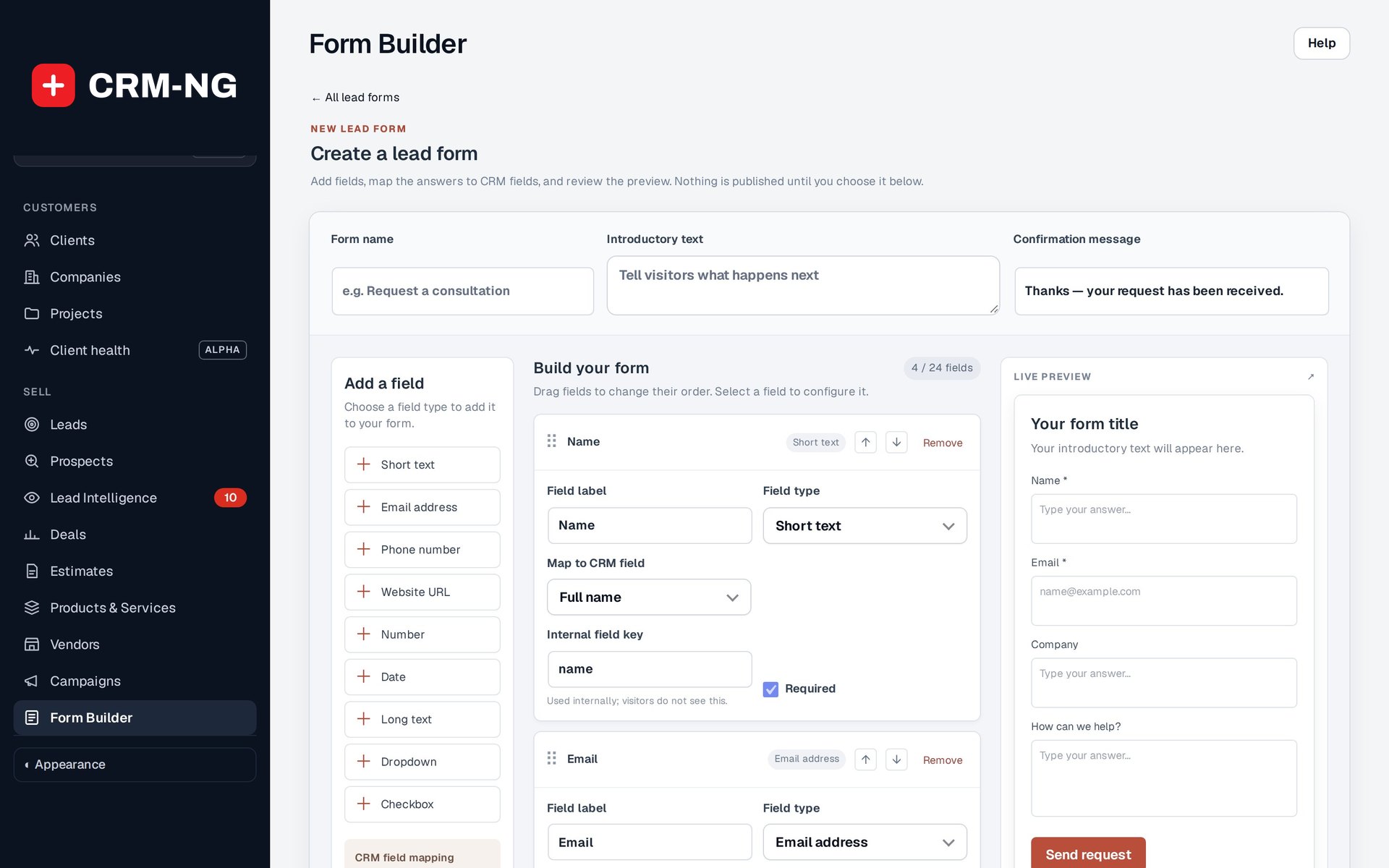
The Form Builder shows fields, answer mappings and a preview. This example was not saved or published.
The Form Builder creates public forms that collect inquiries and save them as lead information. It works separately from client onboarding, although a lead can later become a client and enter that process.
Create and map the fields
Create a draft and give it a clear name. The builder supports up to 24 fields, including short text, email, phone, URL, number, date, long text, dropdowns and checkboxes. Reorder fields by dragging or using the move controls, and choose which answers are required.
Map answers to the corresponding lead fields: name, email, phone or mobile, job title, company, address, city, state, postal code or supported custom fields. Answers without a mapping are kept in a private note. This is useful for a question that matters to the first conversation but does not need a permanent field.
Preview and publish
- Check the labels, choices, required fields and mappings.
- Use Preview to read the form as a visitor would. Preview does not create real submissions.
- Enable publishing when the form is ready.
- Add the supplied shortcode to the intended page, for example
[cgcrm_lead_form id="123"], using the actual form ID. - Submit a clearly identified test inquiry through the published page.
- Open the resulting or matched lead and check the mapped fields and private note.
The form appearing correctly on the page does not confirm that its mappings are right. The final record is the place to verify that result.
Import or revise a form
The available copy/import tools can bring in supported forms, such as Contact Form 7 definitions. Check the options in your installed version. An imported form starts as a draft and does not automatically replace the original plugin's form.
Keep the first inquiry short enough for a visitor to complete easily. Collect detailed setup information later through onboarding. For source and visitor activity, see Lead Intelligence.