Creating and reviewing email campaigns
Choose an audience, prepare a message and check the results after sending.
Needs: Core
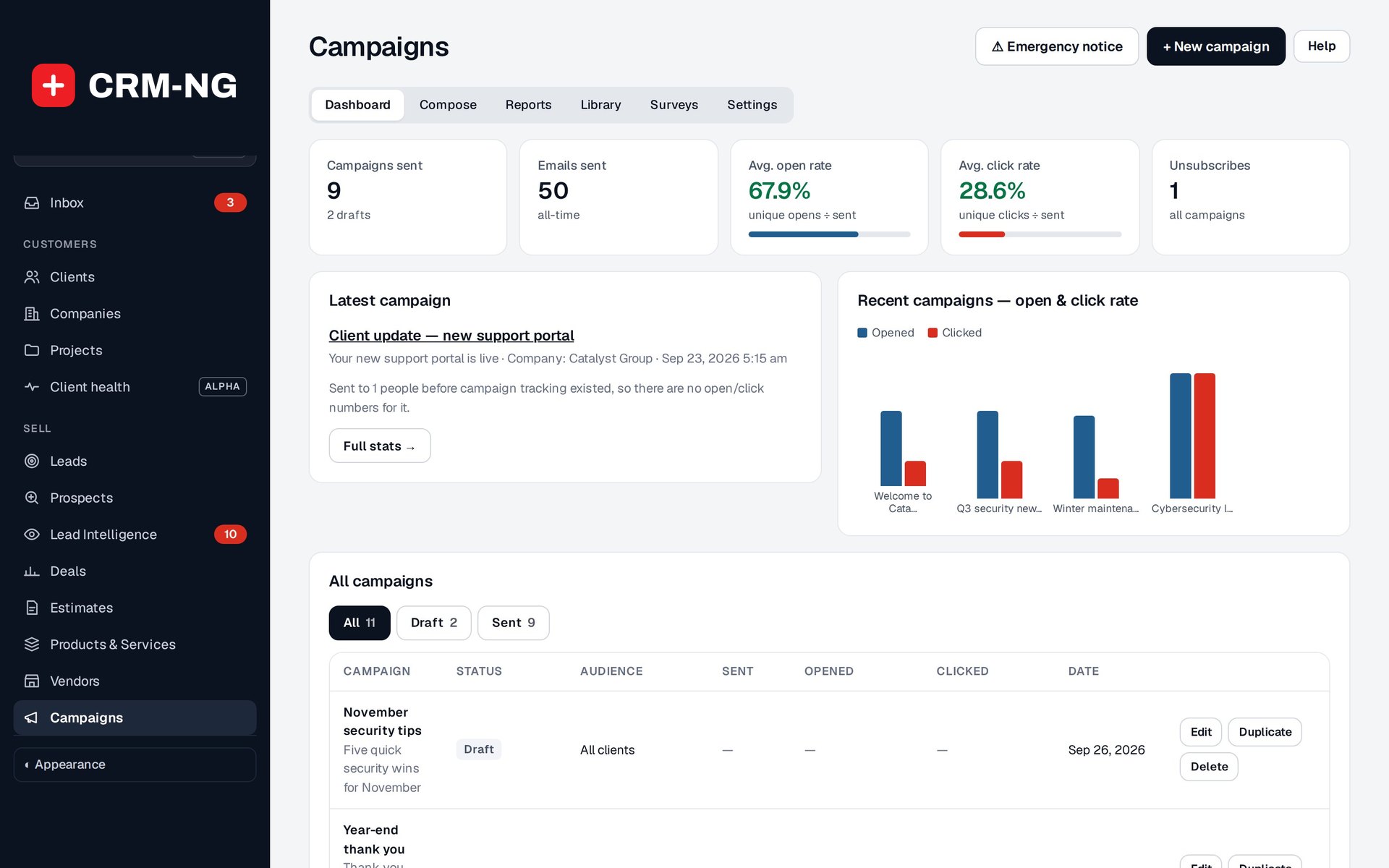
The campaign dashboard shows the audience and sending history, with reports for opens, clicks and unsubscribes.
The Campaigns area contains Dashboard, Compose, Reports, Library, Settings and Emergency Notice. Use Compose to prepare a message, Library for reusable campaign material, and Reports to review recorded engagement.
Prepare a campaign
- Create a draft and choose the recipients using the client, stage, company or segment controls available.
- Review the audience so the message is appropriate for everyone included.
- Write the subject and body. Preview personalization, including what happens when a recipient has no value for a field.
- Check the sender, links, tracking settings and unsubscribe information.
- Use the preview or test process, then send or schedule the campaign.
- Check the campaign state and mail results afterward.
Campaign states include draft, scheduled, sending, sent and failed. Scheduled campaigns require the job runner. When reusing a message from Library, check its dates, claims, links and audience before sending it again.
Understand the reports
Reports show sends, opens, clicks and unsubscribes. Opens are detected through an image, which some mail applications preload or block. Clicks use tracked redirects, and security scanners may visit those links. These figures help you compare engagement, but they do not prove that a person read the message or decided to buy.
Older campaigns sent before recipient tracking may not have detailed open or click records. A missing count therefore does not necessarily mean there was no activity. A send record also does not confirm delivery to the inbox.
Handle unsubscribes and urgent notices
Normal marketing messages respect the applicable opt-out setting. The unsubscribe link opens a confirmation that must be submitted, preventing a simple link preview from changing the preference.
Emergency Notice is an administrative exception that can bypass marketing opt-outs and is audited. Use it for the urgent purpose approved by your organization.
See segments for audience rules and email setup for sending problems.