Tags, segments and custom fields
Organize records and save the information your team uses to find and follow up with customers.
Needs: Core
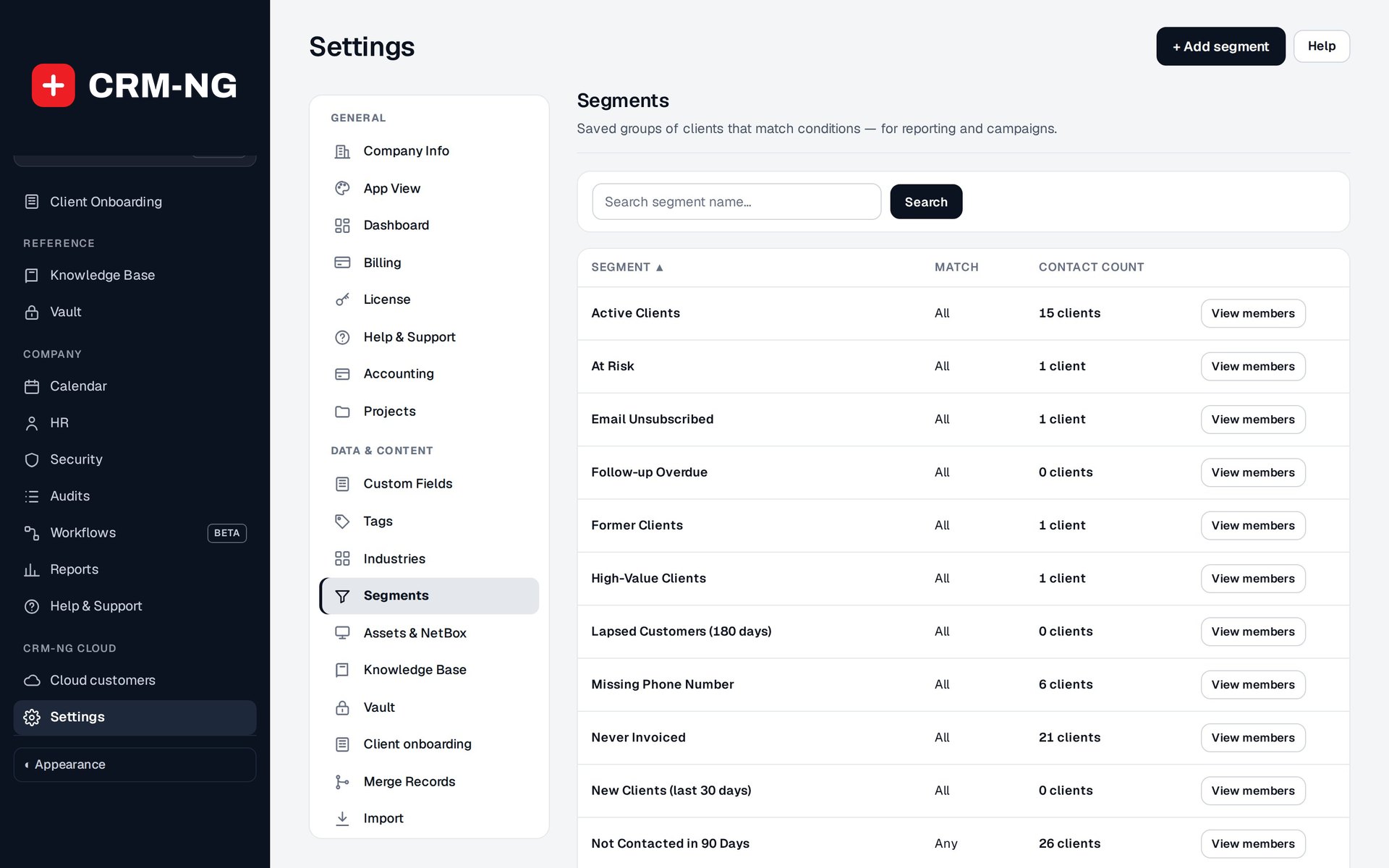
Saved segments find contacts who meet conditions such as being active clients, having an outstanding balance or having an open ticket.
CRM-NG gives you several ways to organize records. Choose the tool according to what you need it to do: label a contact, store a fact, find a changing group of people or apply service terms.
| Tool | Purpose | Example |
|---|---|---|
| Tag | A manually or automatically applied label | Interested in an assessment |
| Segment | A saved set of matching conditions | Active clients in a region with an overdue follow-up |
| Custom field | A structured fact about a record | Renewal date or account classification |
| Service plan | The service terms agreed with a customer | Priority cap, SLA calendar, discount and included hours |
Apply tags
Manage the available tags in Settings → Tags, then apply them from a record or supported bulk action. Use names that staff will understand consistently, such as “Interested in an assessment.”
Removing a tag from one record changes that record's classification. Renaming or deleting the tag definition can also affect filters and workflows that use it, so check those uses before changing a shared tag.
Create a segment
Open Settings → Segments, add a segment and name the group it is intended to find. Add conditions using all when every condition must match, or any when one match is enough. Nested groups let you combine the two approaches.
Review the matching contacts before using the segment in a campaign or workflow. Membership is calculated from current data, so people can enter or leave the group as their records change.
Segments do not grant access or assign a paid service plan. Also, segment-entry automation takes its first scan as a starting baseline and acts on later membership changes. See workflow schedules if you need to understand why existing members were not enrolled.
Add fields and shared choices
Use Settings → Custom Fields to add information for the supported record types. Choose a clear label, stable key and suitable field type. For example, use a date field for a renewal date if you want a workflow to compare it with today's date. Check required fields and defaults before saving.
Settings → Registries holds configurable lists of choices. Before changing a choice already used in forms, filters or workflows, review those uses and check a representative record afterward.