Workflow automation
Set up the follow-ups your team should not have to remember.
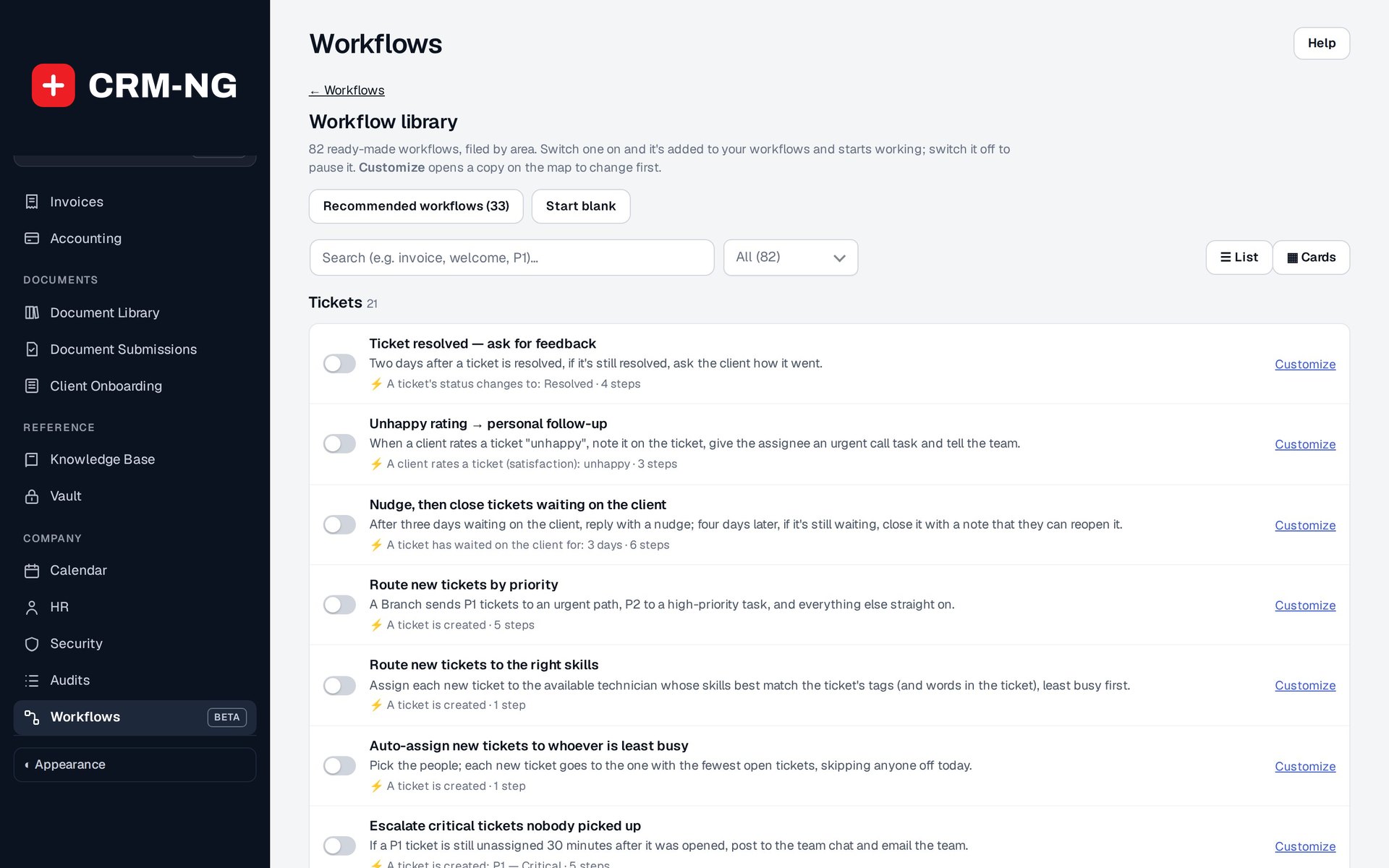
The workflow library offers ready-made workflows by area; each can be switched on, or customised first. None was switched on for this screenshot.
Many business processes have a familiar next step: assign a task after an inquiry, notify the owner when a deal changes, or start a project when work is approved. CRM-NG workflow rules can carry out supported actions when an event occurs and the conditions you choose are met.
Classic rules suit straightforward processes. The visual Workflow Builder, currently in beta, lets you add steps that wait, check a condition or follow a different path. For example, a welcome process can send a message, wait for a response and create a follow-up task if the next step is still outstanding.
Check the process before putting it to work
The builder's dry test shows the decisions and intended actions without sending messages or changing records. You can use a representative record to see whether the right person would receive the message and whether the next action would affect the right customer.
After activation, run history and statistics help you check what happened. Re-entry settings control whether a record can enter the process once, after an earlier run finishes, or every time the event occurs.
Workflows that use scheduled checks or waits need a working job runner. The reference explains those requirements and how to investigate a run that stops or happens later than expected.
Read more: Classic workflow rules · Using the visual builder · Schedules, runs and webhooks