
Field Service
Send the right person, log the visit, and get it signed off.
Schedule technicians on site, check in and out from a phone so travel and time land on the ticket, and close the job with photos and a customer-signed report. For IT field technicians, installers and trades.
- Visits scheduled on the calendar
- Check-in and check-out from a phone
- Travel and on-site time on the ticket
- Before and after photos
- A customer-signed completion report
Why it matters
The office books a visit by phone, the technician gets the address in a text, and nobody knows whether they have arrived until the client rings to ask. Hours on site are remembered at the end of the week, travel is forgotten, and proof of the work is a few photos on someone's personal phone. When a client later disputes the job, there is no signed record of what was done.
-
Every hour on site billed
Check-in and check-out record the on-site time, and travel when you bill for it, straight onto the ticket at the client's rate. Nothing depends on a technician remembering on Friday.
-
The office always knows
The schedule shows each technician's visits for today and the week, who is on site now and what is still unassigned, and clients get an email when the technician sets off.
-
Proof the work was done
Before and after photos and a completion report the customer signs give you a clear record of every job, and a way for the customer to raise a problem that is tracked, not lost.
How it works
-
Schedule the visit
From a ticket or the Field visits screen, choose the client, the date, start time and length, and the technician. The site address fills in from the company or client record, and anyone away is marked.
-
The technician goes
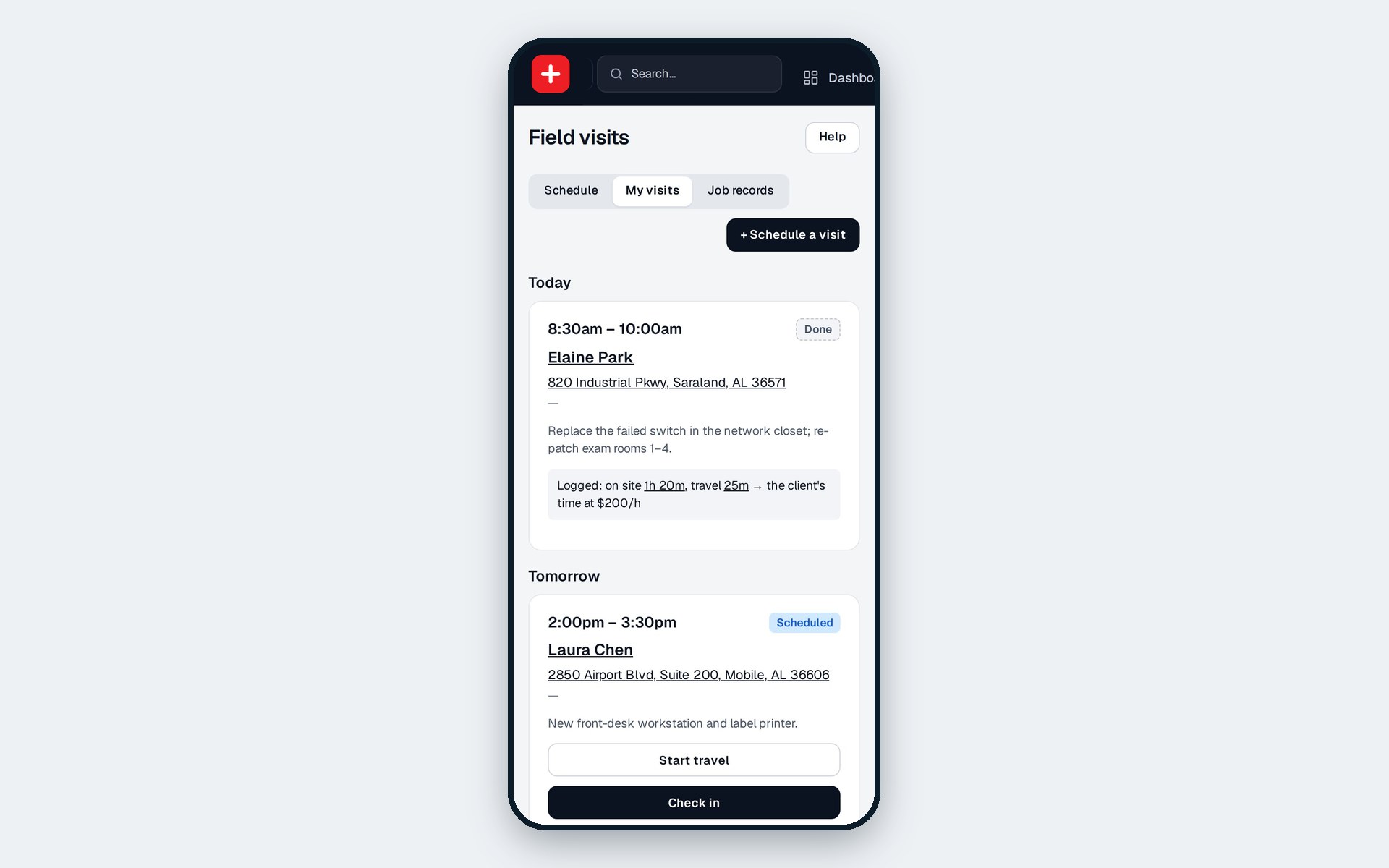
On My visits, the technician sees today and tomorrow on their phone with large buttons. Start travel emails the client that they are on the way; the address opens in Google Maps.
-
Check in, check out
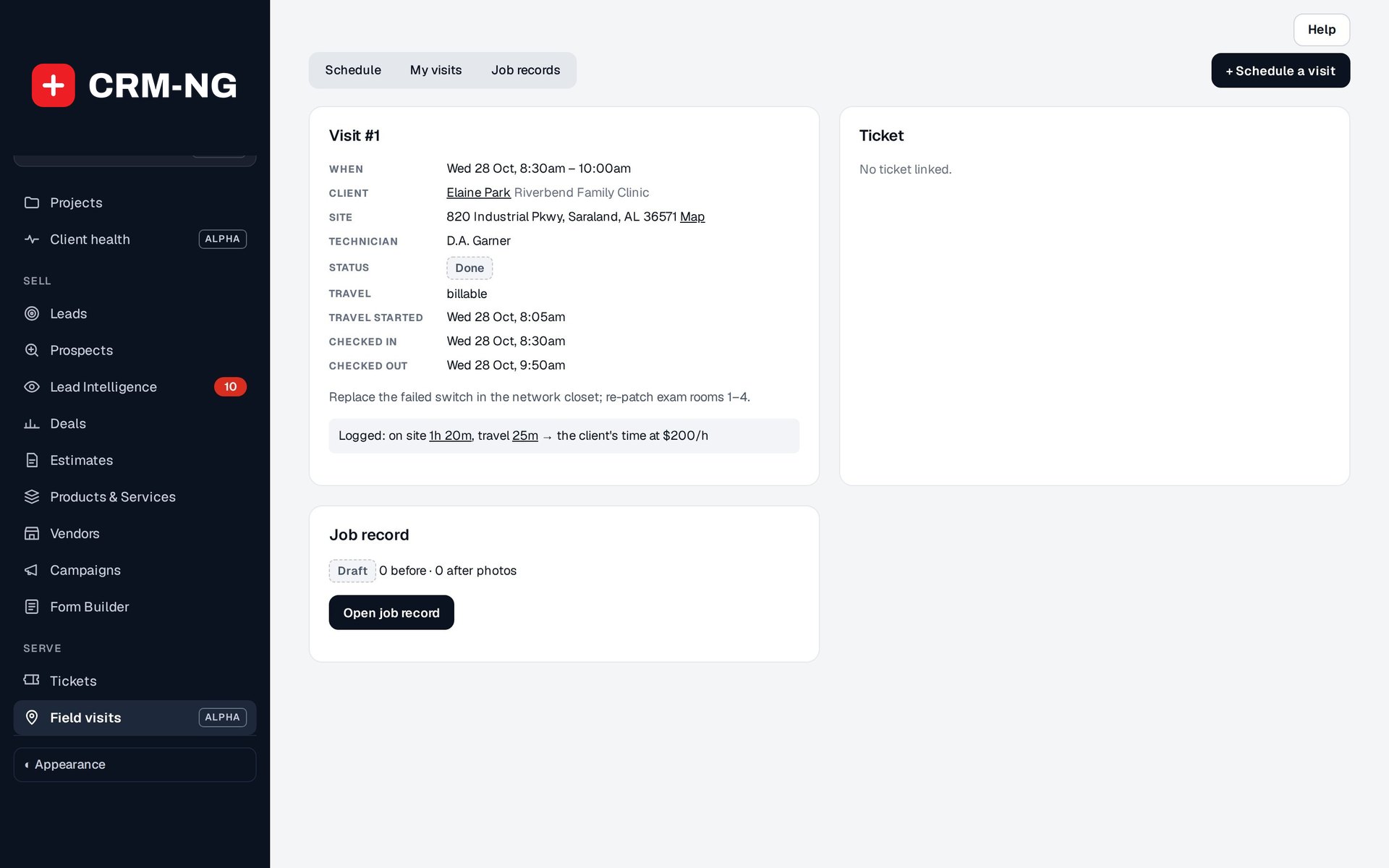
Check in on arrival and check out when finished. The visit shows what was logged, for example on site 1h 20m and travel 25m, against the ticket at the client's rate.
-
Record and sign off
Add before and after photos and notes to the job record, preview the completion report, and send it. The customer signs it in the client portal, or reports a problem for your team to fix.
What Field Service does
Installers, IT field technicians, trades and anyone who works on site.
-
Scheduling
Book a visit against a ticket, pick the technician and the time, and it appears on everyone's calendar.
- Client and ticket pickers, with the ticket's client filled in when you start from a ticket
- Site address from the company's address, else the client's
- Start time with a duration or an end time
- Technicians listed first; people on leave marked away
-
A schedule the office can read
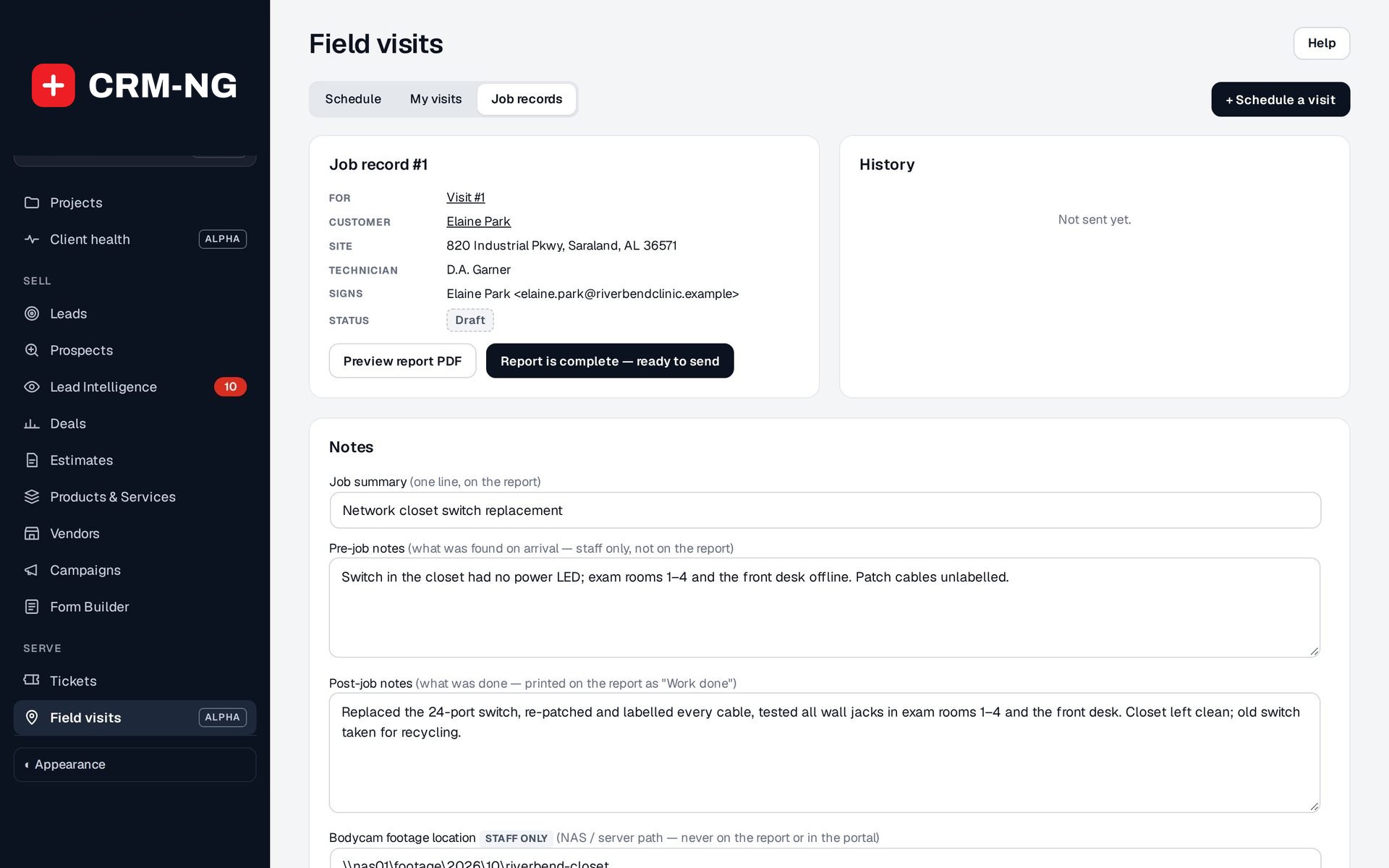
Today, This week, All upcoming and Past, grouped by technician with unassigned visits first.
- Tiles for Visits today, On site now, Unassigned and Hours logged this week
- Status on every visit: Scheduled, travelling, on site, Done or cancelled
- Start travel, Check in, Edit and Cancel from the list
-
On my way
One tap tells the client the technician is on the way, and starts the travel time.
- Emailed to the visit's client contact
- Not sent to people who have unsubscribed or whose address is blocked
- Travel billable or not, set per visit
-
Check in, check out
Time on site is logged against the ticket automatically, at the right rate.
- On-site time and travel recorded as separate time entries
- Rate chosen the Service Desk way: client, then staff, then default
- The visit links to the entries it created
-
Built for the phone
My visits gives each technician their own day in one column with large buttons.
- Today and tomorrow only, for the signed-in technician
- Addresses open in Google Maps
- A technician-only account sees and works only its own visits
-
Photos that prove the work
Before and after photos, stored encrypted and seen only by the people on the job and the customer.
- Take photos with the phone camera or choose files, several at once
- A caption on each photo
- Large photos reduced in size on the phone before upload
-
Signed off on the spot
A completion report with the photos, which the customer signs to accept the work.
- PDF with your logo, the customer, site, date, technician, summary, work done and photos
- Three statements the customer confirms above the signature
- Draft, Ready to send, Sent for signature, Signed or Disputed
-
My visits in the portal
Clients see their past and upcoming visits and reports.
- Each visit's time window, technician's first name and status
- Review and sign the job report
- Report a problem, which marks the record Disputed and alerts the technician
See it in action
Who it is for
-
An IT provider or MSP
Send a technician from the ticket to replace a failed switch, log the travel and the time in the network closet against that ticket, and leave the client a signed report with photos of the labelled patch panel.
-
An installer
Network, camera or AV installers can schedule each site day, show before and after photos of the install, and get the customer's signature that the work was completed and nothing was damaged.
-
A trades business
Electricians, plumbers and maintenance firms can run the day from the phone, tell the customer they are on the way, and keep a signed record of every callout.
-
A clinic or office with on-site support
Customers who host your technicians see upcoming and past visits in the portal and sign or query each report there.
Works with the rest of CRM-NG
- Service Desk
Visits are booked against tickets, and check-out writes the on-site and travel time to the ticket using Service Desk rates; the ticket page shows its Field visits and Job records.
- Calendar
Every visit appears on the Field visits layer of the calendar, built from the visits themselves.
- Document Manager
Sending a report creates a document for the customer to e-sign in the portal, and the signed copy is attached to the confirmation email; without Documents the report is emailed as a PDF.
- Web Integration & Portals
Clients see My visits in the client portal, with each job report to review, sign or query.
- HR
Approved leave marks a technician as away when you pick who to send.
Needs Service Desk.
Questions
Does it work on a phone?
Yes. My visits is laid out for a phone with large buttons, and photos can be taken with the phone's camera straight into the job record. It runs in the phone's browser; there is no separate app to install.
Who can see the photos?
Photos are stored encrypted. Staff on the job (managers, the visit's technician and the person who created it) can open them, and the customer can see them once the report has been sent to them.
Can the customer refuse to sign?
They can use Report a problem instead. The job record is marked Disputed, their comment is kept in its history, and the technician and your company address are emailed so you can revise and send a new report.
Is travel time always billed?
No. Each visit has a travel billable setting. Travel is recorded either way, so you can see it, and billed only when you say so.
Can technicians see each other's visits?
A technician-only account sees and works only its own visits and cannot reassign them. Managers see the full schedule.
Can we record where bodycam footage is kept?
Yes. The job record has a staff-only field for the footage location. It never appears on the report or in the portal.
See Field Service running on your own data.
Every module runs on CRM-NextGen Cloud: we set it up and run it for you. Beta members get the first invites and hear pricing first.