
Document Manager
Send documents to sign and know where each one stands.
A library of reusable templates with signature fields placed once, copies assigned to clients and signed online, and private storage for the results. For anyone who sends agreements, policies or reports to sign.
- Template library
- Signature fields placed once
- Assigned per client
- Signed online, tracked to done
- Private file access
Why it matters
You email a PDF agreement, the client prints it, signs it, scans it crooked and sends it back a week later, or never. Someone has to remember who still owes a signature. The signed copies end up in a shared drive, an inbox and a filing cabinet, and when a dispute comes up nobody can say exactly when it was signed or whether the file was changed afterwards.
-
Signatures back sooner
Clients sign in the portal from whatever device they have, without printing, scanning or posting anything.
-
No more chasing blind
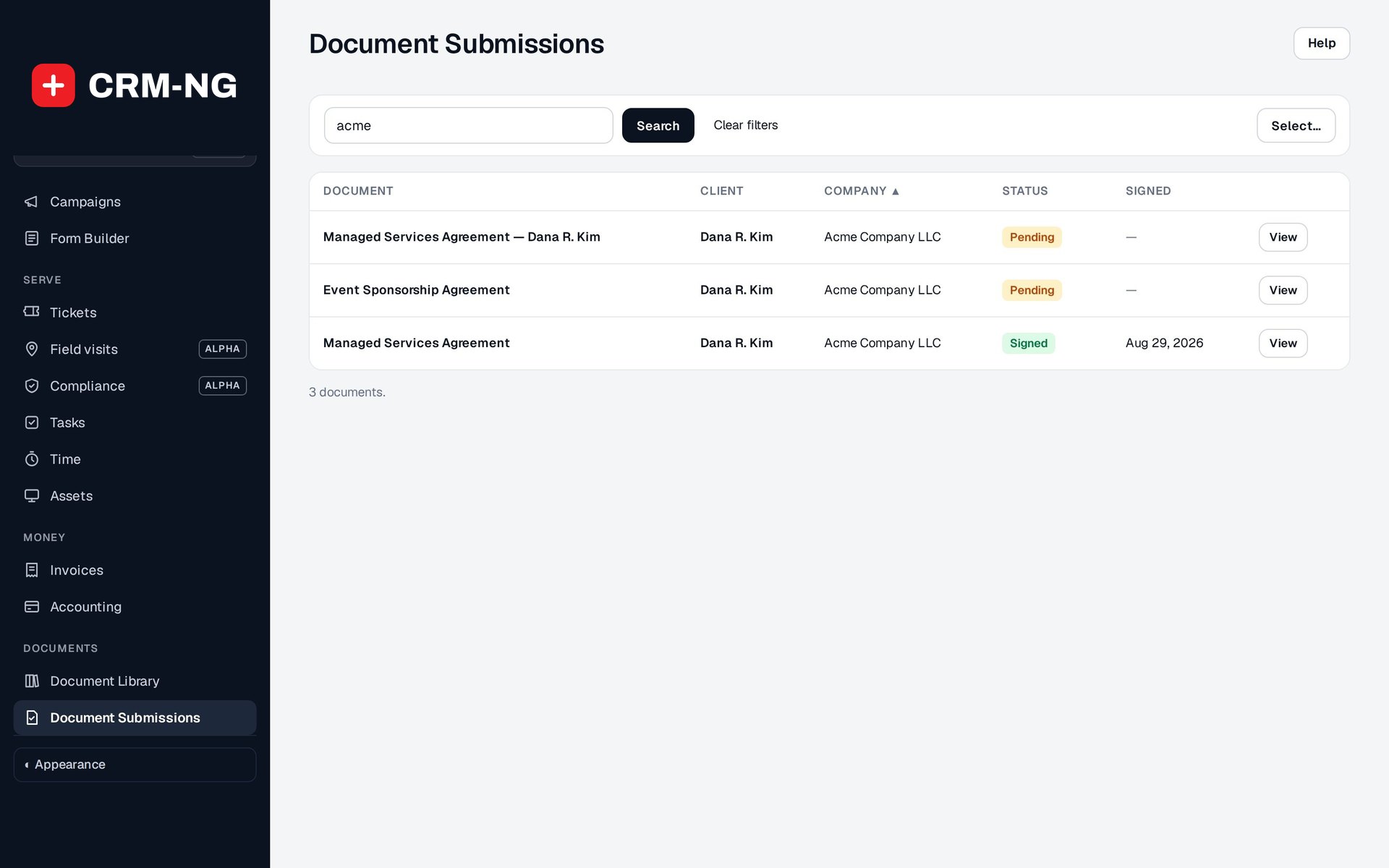
One list shows every document you sent, who it went to, and whether it is still pending or signed.
-
Proof when you need it
Each signature is recorded with who signed, when, how and from where, with fingerprints of the file before and after signing.
How it works
-
Build your library
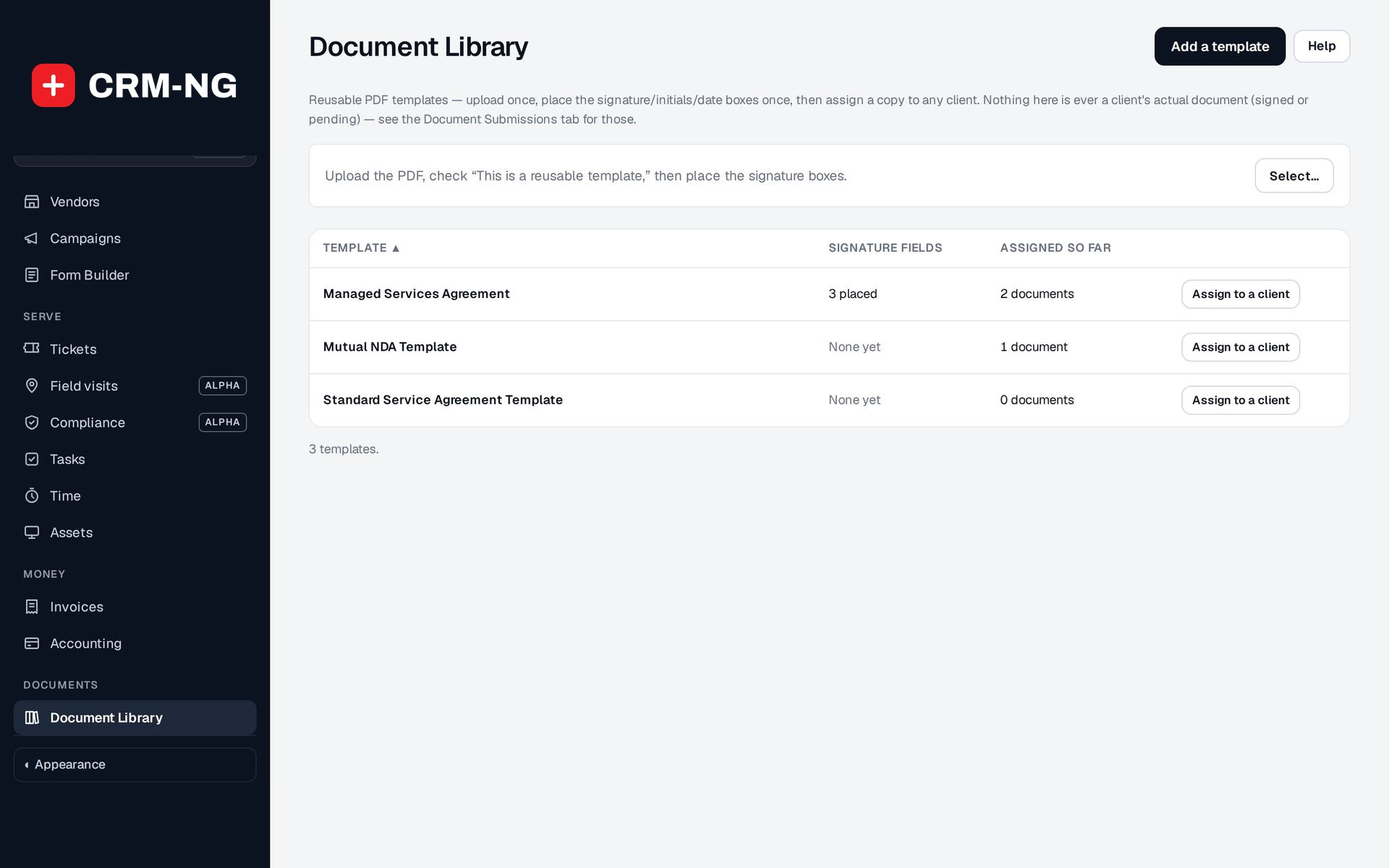
Upload a PDF such as your service agreement or NDA, place the signature, initials and date boxes on the right pages, and save it as a reusable template.
-
Assign a copy to a client
Pick the template, search for the client by name, email or company, and create their copy. It appears in their client portal ready to sign.
-
The client signs online
The client opens the document in the portal, reviews it, completes each field with a typed or drawn signature, and submits it.
-
Track it to done
Document Submissions shows the copy as Signed with the date. You and the signer both receive a "Document signed" email, and the signed file is stored privately with its audit trail.
What Document Manager does
Anyone who sends agreements, policies or reports to sign: IT providers, professional firms, trades and field businesses, clinics and agencies.
-
Templates you reuse
Upload a PDF once, place signature, initial and date boxes, and assign copies to any client.
- Document Library with Signature fields and Assigned so far per template
- Field-placement editor across every page of a multi-page PDF
- Assign a client straight from the library
- Changing a template does not alter copies already sent
-
Signed online
Clients sign in the client portal on any device, with no app to install and no account to create beyond their portal login.
- Typed or drawn signature
- Initials and date fields filled in on the document
- The signature is stamped onto the PDF itself
-
Always know the status
Document Submissions lists every copy you have sent, with its client, company, status and signed date.
- Pending or Signed, at a glance
- Search by document, client or company
- Select several documents for bulk actions
- View opens the copy, its files and its history
-
A signing audit trail
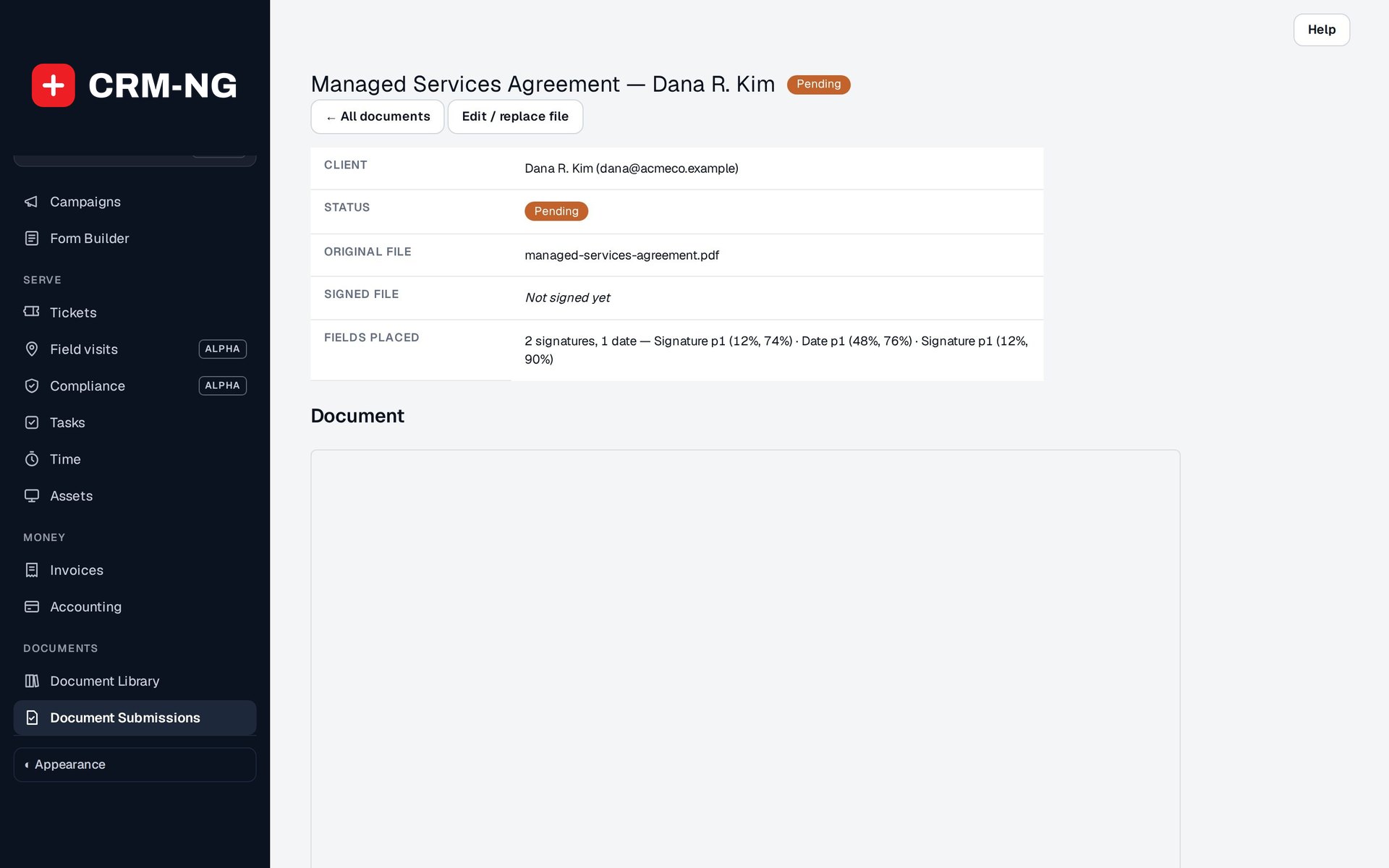
Every completed signature records how it was signed, by whom, when, the IP address and the browser.
- SHA-256 fingerprint of the file before and after signing
- Original and signed file kept side by side
- Audit history on each document's detail page
-
Private storage
Signed documents are stored privately and served only to the right people, never from a public link.
- Downloads checked against who is asking
- Clients see only documents assigned to them
- Files removed when their document is deleted
-
On the customer record
Every document sits on the client and company it belongs to, alongside their tickets, invoices and history.
- A client's documents listed on their record
- Signing shows in the client's activity
- Company column on Document Submissions
-
Instant confirmation
When a client signs, you and the signer both get an email saying which document was signed, by whom and when.
- "Document signed" email with your business name
- Other modules can attach a file to the signer's email, such as a Field Service job report
-
Job sign-off
Field Service completion reports arrive here to sign, so the customer signs off the work in the same place as their agreements.
- A completion report becomes a document assigned to the customer contact
- Re-sending after a dispute makes a new copy and keeps the old one in history
Who it is for
-
An IT provider or MSP
Send every new client the managed services agreement, an acceptable-use policy and a network assessment to sign, and see at a glance who has not signed yet before work starts.
-
A professional-services firm
An accounting or law firm sends engagement letters and NDAs from the same templates each time, and keeps the signed copies and their audit trails privately on each client.
-
A trades or field business
Customers sign the completion report for a job in the portal, and the signed copy is filed against them with the rest of their paperwork.
-
A clinic or practice
New patients or clients sign intake and consent forms online before their first visit instead of filling them in at the front desk.
Works with the rest of CRM-NG
- CRM
Every document belongs to a client and company record, so their agreements sit next to their contact details, activity and history.
- Web Integration & Portals
Clients open and sign their documents in the client portal, which is where signing happens.
- Field Service
A Field Service completion report is sent as a document for the customer to sign, and the signed report is attached to the signer's confirmation email.
- Sales
When a deal is won, assign the new client your service agreement from the library; the signed agreement then sits on the same client record as the deal and estimate.
Questions
What do clients need to sign?
A login to your client portal and a browser on a phone, tablet or computer. They open the document, fill in the signature, initials and date fields with a typed or drawn signature, and submit.
What file types can we use as templates?
Templates are PDFs. Upload the PDF, place the signature, initials and date boxes on its pages, and save it to the Document Library.
If we change a template, do clients' copies change too?
No. Changes apply to copies you assign afterwards. Copies already sent stay as they were, so what a client signed is what they saw.
How do we prove who signed and when?
Each document's detail page shows the signing method, the person, the time, their IP address and browser, plus SHA-256 fingerprints of the file before and after signing, so the two versions can be identified.
Who can see signed documents?
Your staff with access to documents, and the client the document was assigned to. Files are kept in private storage and every download is checked; there are no public links.
See Document Manager running on your own data.
Every module runs on CRM-NextGen Cloud: we set it up and run it for you. Beta members get the first invites and hear pricing first.