
Custom Fields
Track the details that are unique to your business.
Your own fields on clients, leads and prospects, and one screen to edit every list: statuses, priorities, categories and more.
- Your own fields on records
- Text, number, date, dropdown and more
- Filters and dashboard tiles
- Edit every list in one place
- Carried over when leads convert
Why it matters
Every business tracks something the standard form does not have room for: a contract renewal date, the number of seats, which line-of-business software a client runs, a referral code. Without a proper field it ends up in the notes, where nobody can filter on it, report on it or be reminded when the date comes round, or in a side spreadsheet that drifts out of date.
-
Your process, not ours
Add the exact facts your team needs on each record, and rename ticket statuses, priorities and categories to the words your business already uses.
-
Find the right records fast
Dropdown, multi-select and yes/no fields become filter chips on your lists, so you can pull up every client on a given contract type in two clicks.
-
Dates that act on time
A date field such as a renewal date can start a workflow on the day or days before, so reminders go out without anyone watching a calendar.
How it works
-
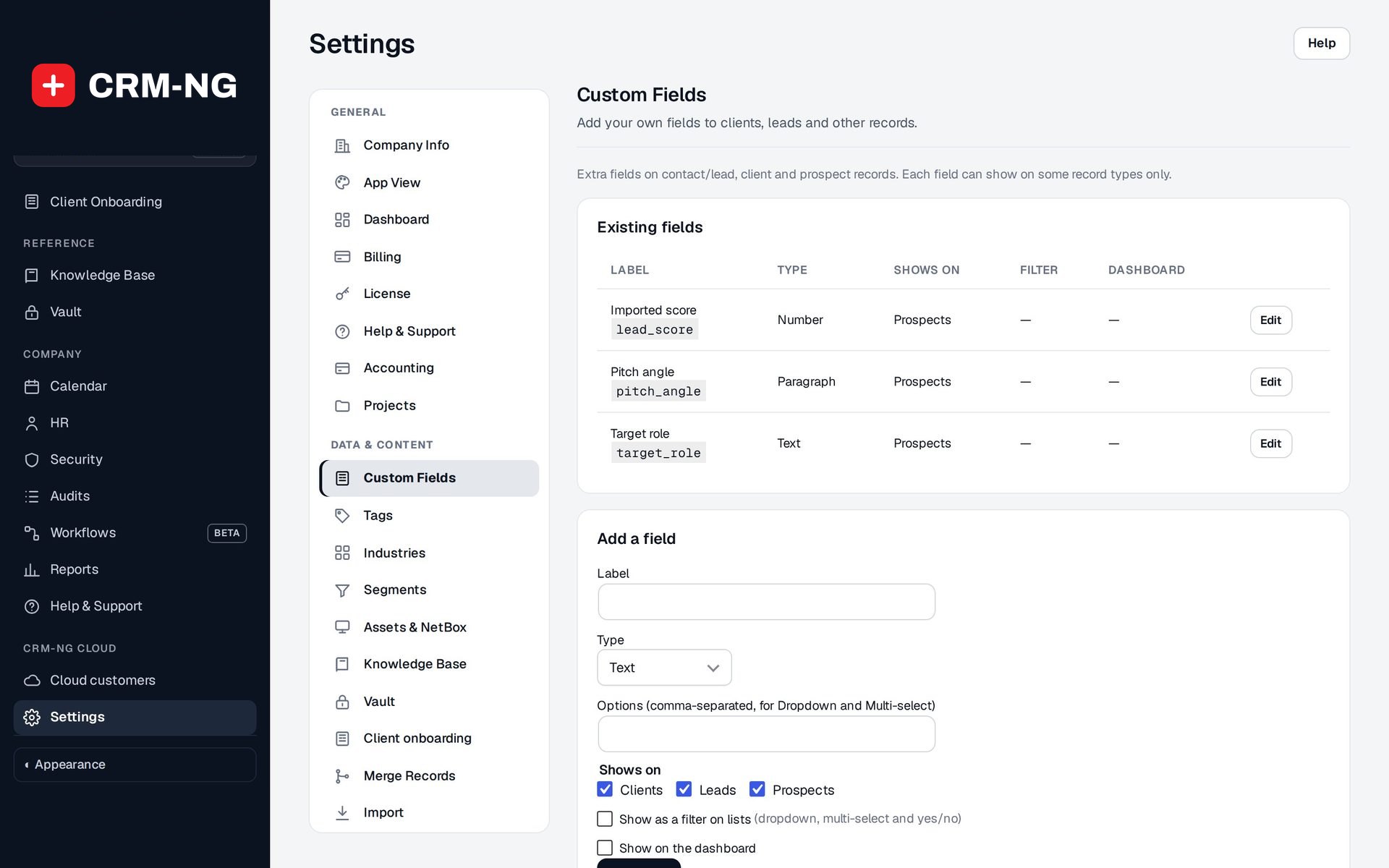
Add a field
Give it a label, choose its type, list the options for a dropdown, and tick the records it shows on: clients, leads, prospects or all three.
-
Fill it in as you work
The field appears on the record's edit form and its value shows on the record page. Lead forms and prospect imports can fill it too.
-
Use it everywhere
Filter lists by it, chart it on the prospects overview, and build workflow conditions, actions and date triggers on it.
-
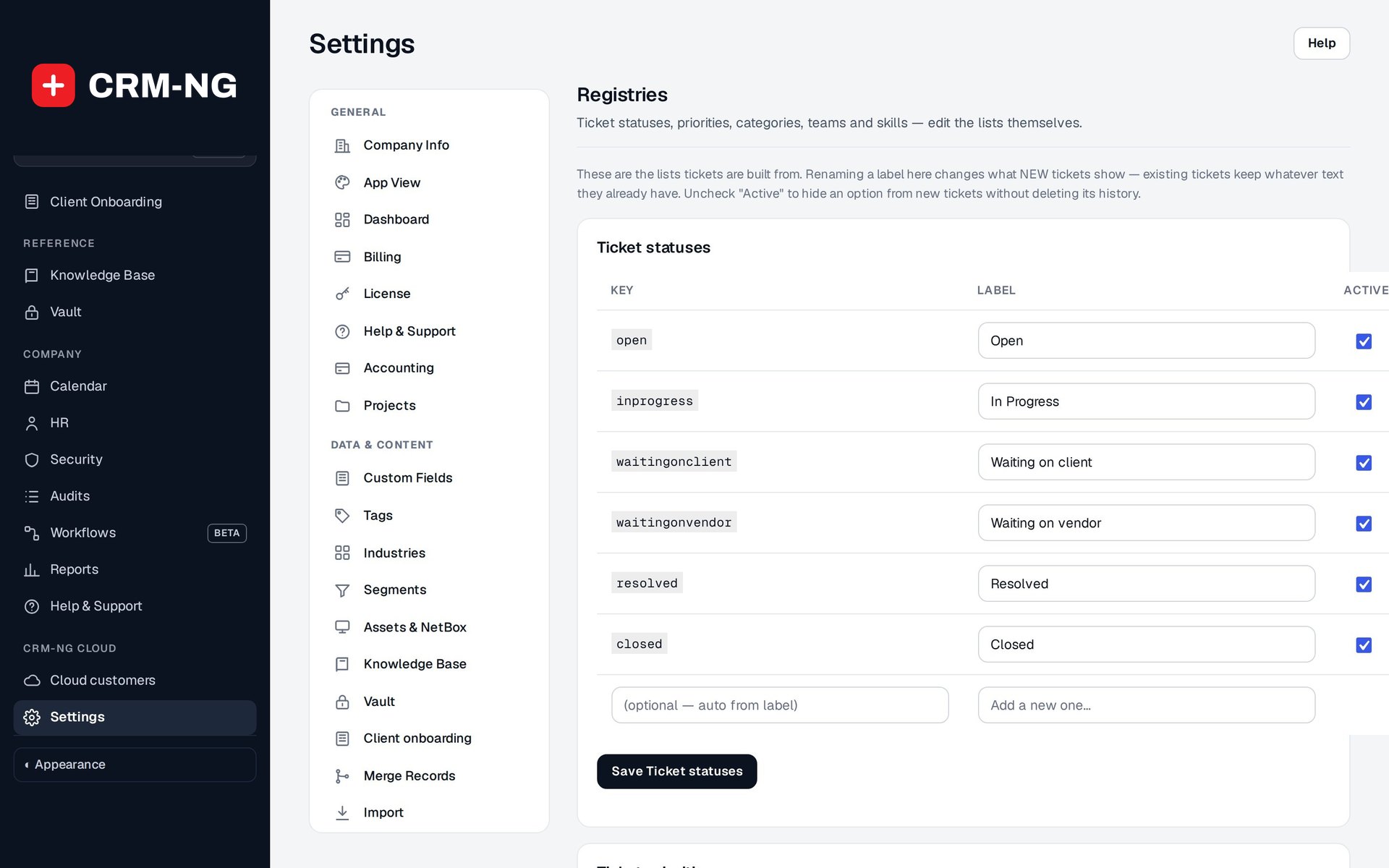
Shape your lists
In Registries, rename, add or retire ticket statuses, priorities, categories, teams and staff skills.
What Custom Fields does
Any business with its own way of doing things.
-
Fields you define
Add the details you track, on the records that need them.
- Each field shows on clients, leads, prospects, or any mix
- A clear label and a stable key that never changes
- Edit a field's label, options and where it shows at any time
-
Every kind of answer
Text, paragraph, number, date, dropdown, multi-select and yes/no.
- Link fields for web addresses
- Dropdown and multi-select choices entered as a simple list
- A multi-select only accepts its own options
-
Use them everywhere
Filter lists by them and show them on the dashboard.
- Show as a filter on lists: a chip for dropdown, multi-select and yes/no fields
- Show on the dashboard: a chart per field on the prospects overview
- Columns in the prospects table editor
-
Automation that reads your fields
Workflows can check, set and react to your custom fields.
- Date triggers such as Renewal date today, in 1, 3, 7, 14 or 30 days
- Conditions on a field's value
- An action that sets a field
-
Filled in for you
Answers can arrive from your web forms and spreadsheets instead of being typed.
- Lead form answers map straight into custom fields
- Prospect imports fill custom fields, blanks only, never overwriting
-
Edit your lists
Ticket statuses, priorities, categories, teams and skills, all editable.
- Registries: rename, add and switch items off
- Export and import the lists as a file to reuse them
-
Safe to change
Renaming a label never breaks the records that use it.
- Fields and list items keep a fixed key behind the label
- A list item switched off stays valid on older records
- Stored values are kept even if the module is switched off
-
They travel with the record
When a lead becomes a client, its custom fields come with it.
- Values move across on conversion
- Shown on the record page while viewing; editable in Edit
Who it is for
-
An IT provider or MSP
Record each client's seat count, backup product and contract renewal date, filter clients by line-of-business software, and remind the account owner 30 days before renewal.
-
A professional-services firm
Add fields for engagement type, fiscal year end or matter reference, and rename ticket categories to match the services you offer.
-
A trades or field business
Track property type, access instructions and service intervals on each client, and filter leads by the kind of job they asked about.
-
A clinic or practice
Capture referral source and preferred contact method from your intake form straight into fields your team can filter and report on.
Works with the rest of CRM-NG
- CRM
Your fields appear on client and lead forms and record pages, become filter chips on the lists, and move across when a lead converts to a client.
- Sales
Prospects carry your fields, prospect imports can fill them, the table editor shows them as columns, and the prospects overview charts them.
- Service Desk
Registries hold the ticket statuses, priorities, categories and teams the service desk uses, plus the staff skills used for routing.
- Workflow
Workflows can test a field's value, set a field, and start on a custom date field, on the day or up to 30 days before.
Questions
Which records can have custom fields?
Clients, leads and prospects. Each field can show on any mix of the three.
What happens to existing data if I rename a field or an option?
Each field and list item has a fixed key behind its label, so renaming changes only what people see. Records that already use it keep their value.
Will I lose the values if I delete a field or switch the module off?
Switching the module off keeps every stored value, ready for when you switch it back on. Deleting a field removes it from forms, so check where it is used first.
Who can add or change fields and lists?
Administrators. Everyone else fills in the fields on the records they are allowed to edit.
Can a custom field trigger a reminder?
Yes. With Workflow, a date field can start a workflow on the day or 1, 3, 7, 14 or 30 days before, for example to remind the account owner about a renewal.
See Custom Fields running on your own data.
Every module runs on CRM-NextGen Cloud: we set it up and run it for you. Beta members get the first invites and hear pricing first.